Last Updated on October 12, 2026 by Dee
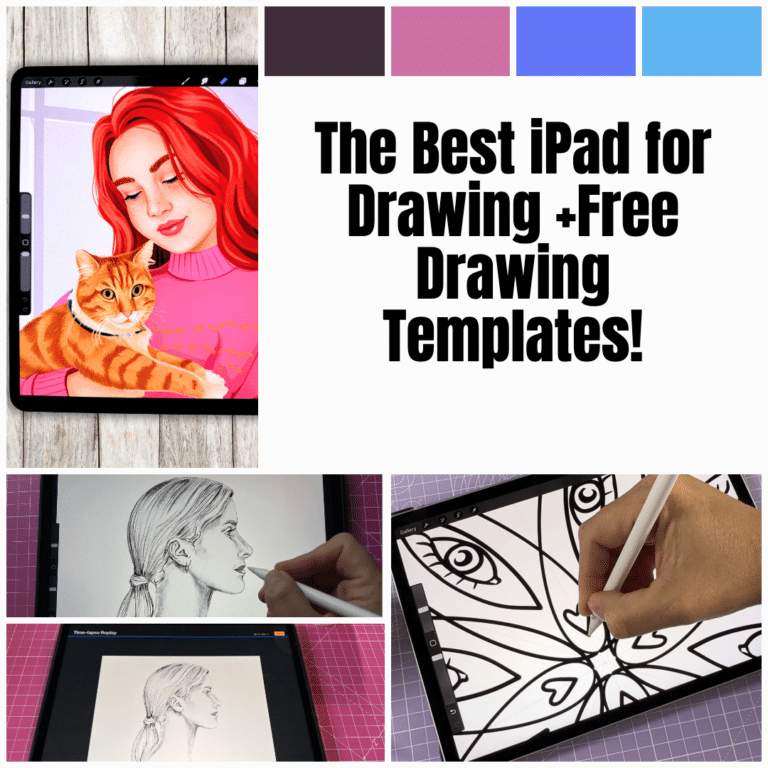
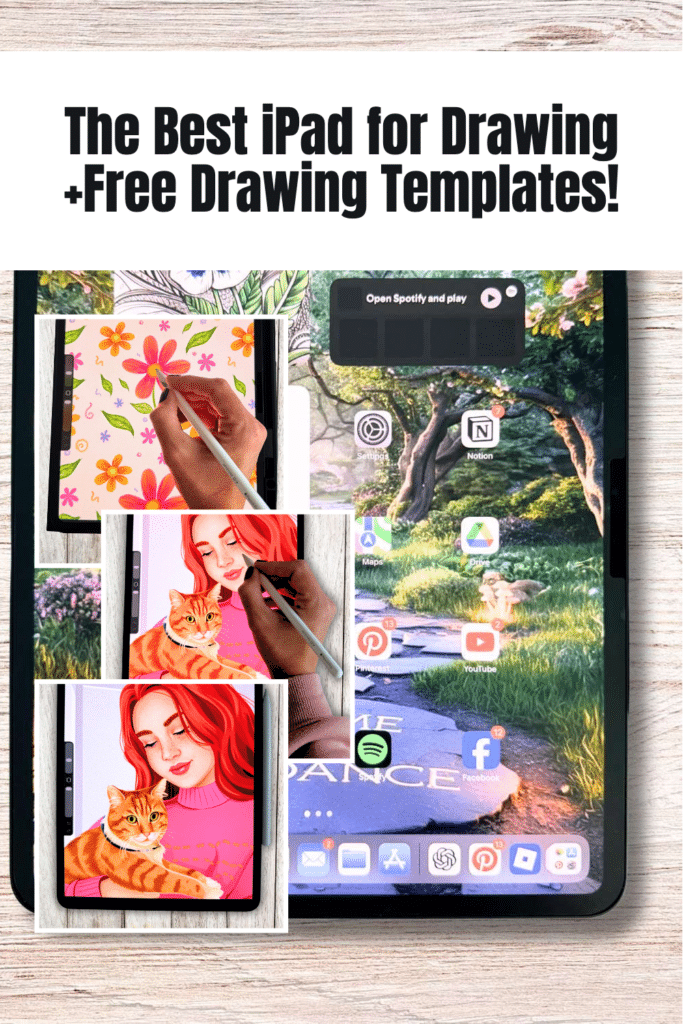
This is my guide to the best iPad for drawing, plus a Free Procreate Drawing Template Pack to try on your iPad.
Here’s the thing about buying an iPad for art: there are so many options now that it can feel overwhelming. Which one actually gives you the best drawing experience? Which one is worth the money? And honestly, do you really need the most expensive model?
I’ve been using iPads for digital art for years now, and I’m currently working on a 13-inch M4 iPad Pro that I absolutely love. It’s ridiculously powerful, the screen is gorgeous, and the drawing experience is buttery smooth. But that doesn’t mean it’s the right choice for everyone.
Whether you’re just starting your digital art journey or you’re a seasoned pro looking to upgrade, I’m going to break down the best iPads for drawing in 2025—no fluff, just honest recommendations based on what actually matters when you’re creating art.
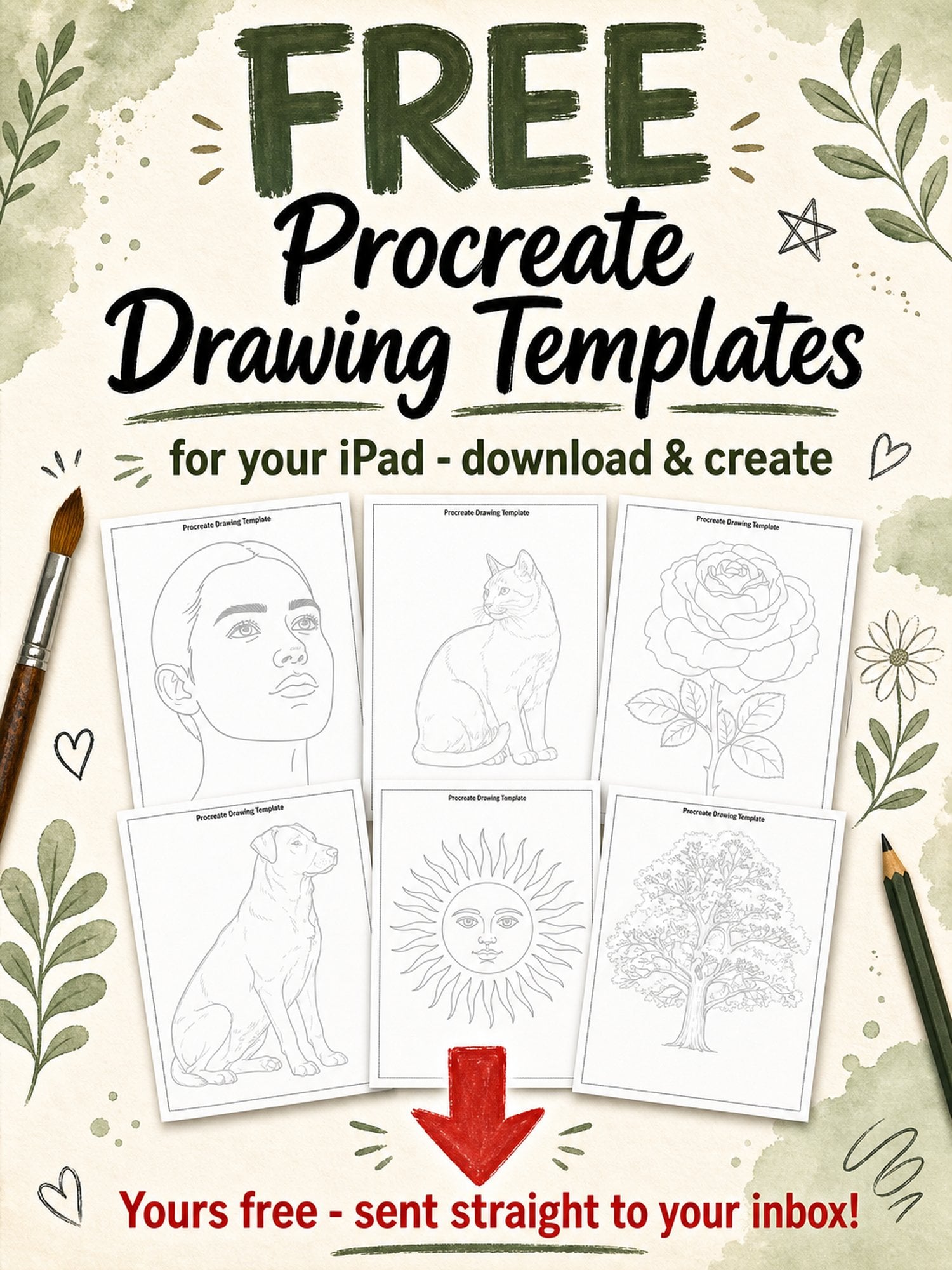
Download the free Procreate drawing templates at the top of this post!
🎨 Want more free printables? Browse my Free Printables Library — over 400 free templates, coloring pages, drawing guides, and creative resources all in one place!
My Top Pick: The 13-inch M4 iPad Pro (2024)

Look, I’m not going to bury the lead here. If you want the absolute best drawing experience and you can swing the price, the 13-inch M4 iPad Pro is it.
I upgraded to this model earlier this year, and the difference is noticeable. The M4 chip is incredibly fast—no lag, no stuttering, even when you’re working with massive files full of layers. The 13-inch Tandem OLED display is stunning. Colors are vibrant and accurate, blacks are deep, and the overall visual experience just makes you want to create.
The ProMotion technology (120Hz refresh rate) makes drawing feel natural and responsive. When you’re sketching with the Apple Pencil Pro, there’s almost zero latency. It’s like drawing on paper, except you can undo mistakes and have thousands of colors at your fingertips.
Why I love the 13-inch size:
- Plenty of room to work without feeling cramped
- Easy to have reference images open while you draw
- Still portable enough to take with you
- Feels like working on a real sketchbook
The downside? It’s expensive. Starting at around $1,299, this is an investment. But if digital art is a serious part of your life—whether you’re a professional or just deeply committed to your craft—it’s worth every penny.
Best Mid-Range Option: iPad Air (6th Gen, 2024)

Not everyone needs (or wants to pay for) the Pro. That’s where the iPad Air 6th Gen comes in.
This thing is a powerhouse. It’s got the M2 chip, which is still incredibly fast and can handle anything you throw at it in Procreate, Adobe Fresco, or any other drawing app. The 11-inch Liquid Retina display looks beautiful, and it supports the Apple Pencil Pro and USB-C, which is convenient for charging and accessories.
The iPad Air starts at $599, which makes it a fantastic value if you’re serious about digital art but don’t need the absolute top-of-the-line features.
What you’re giving up compared to the Pro:
- Smaller screen (11-inch vs 13-inch)
- No ProMotion display (60Hz instead of 120Hz)
- Slightly less powerful processor
But here’s the thing—for most artists, especially beginners and intermediates, you won’t notice these differences in your day-to-day work. The Air is more than capable of handling complex illustrations, and the drawing experience is still excellent.
Best for Beginners: iPad (10th Gen, 2024)

If you’re just starting out and want to dip your toes into digital art without breaking the bank, the 10th Gen iPad is your best bet.
It’s affordable (starting around $349), it runs all the major drawing apps beautifully, and it’s compatible with the Apple Pencil (1st generation). Sure, you’re not getting all the bells and whistles of the Pro, but you’re getting a solid, reliable device that will let you create beautiful art.
This is perfect if you’re:
- A student or hobbyist
- Not sure if digital art is for you yet
- On a tight budget
- Just need something to practice with
Portable Option: iPad Mini (6th Gen)

The iPad Mini is a quirky little option that works surprisingly well for sketching on the go.
With its 8.3-inch screen and compact size, it’s not ideal for detailed work or long drawing sessions. But for quick sketches, thumbnails, or when you’re traveling and want something ultra-portable, it’s pretty great. It supports the Apple Pencil (2nd gen) and has a decent processor.
I wouldn’t recommend it as your primary drawing device, but as a secondary “sketch on the couch” iPad? It’s perfect.
Drawing Apps: What Should You Use?
Having a great iPad is only half the equation. You need the right drawing app too. Here’s my rundown of the best options:
Procreate – The Gold Standard
Procreate is hands-down the most popular drawing app for iPad, and for good reason. It’s a one-time purchase (around $12.99), packed with features, and the interface is intuitive once you get the hang of it.
What I love about Procreate:
- Hundreds of brushes (and you can create custom ones)
- Layer support with blend modes
- Time-lapse recording of your process
- Excellent for illustration, painting, and sketching
- Works beautifully with the Apple Pencil
If you only download one drawing app, make it Procreate. It’s industry-standard for digital artists.
Adobe Fresco – Best for Natural Media
Adobe Fresco is incredible if you love watercolors and oils. The live brushes actually simulate real paint behavior—watercolors bloom and blend, oil paints mix and smudge. It’s the closest thing to traditional painting in a digital format.
The free version is great, but if you want all the features, you’ll need an Adobe Creative Cloud subscription.
Affinity Designer 2 – Vector Art Powerhouse
If you do graphic design, logos, or anything that needs to scale infinitely without losing quality, Affinity Designer 2 is your app. It’s a one-time purchase (around $21.99) and it’s professional-grade vector software.
Concepts – Infinite Canvas
Concepts is unique because it offers an infinite canvas. You can zoom and pan forever, which is perfect for brainstorming, mind mapping, or working on large-scale projects. It’s great for architects, designers, and anyone who needs room to think.
Adobe Photoshop for iPad
If you’re already in the Adobe ecosystem, Photoshop for iPad brings a lot of desktop power to your tablet. It’s not quite as full-featured as the desktop version, but it’s constantly improving. Great for photo manipulation and digital painting.
Autodesk SketchBook – Free & Simple
SketchBook is completely free and offers a clean, uncluttered interface. It’s perfect for beginners who want to learn digital drawing without being overwhelmed by features.
Art Set 4 – Traditional Art Simulation
Art Set 4 simulates real art supplies like pencils, markers, watercolors, and oil paints. It’s gorgeous and relaxing to use—perfect for mindful, therapeutic art sessions.
Essential Accessories for Drawing on iPad
Your iPad is only as good as the accessories you pair it with. Here’s what I recommend:
Apple Pencil – Non-Negotiable
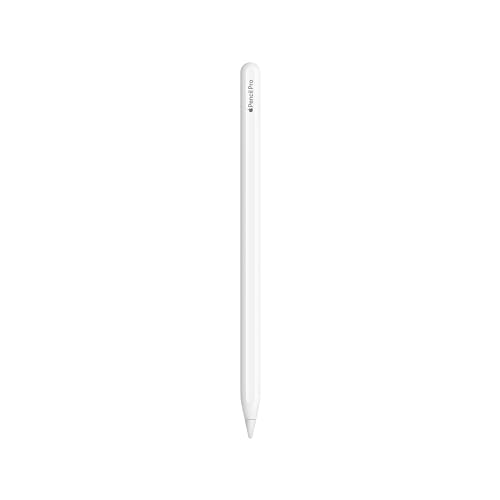
You need an Apple Pencil. Period. Don’t waste money on third-party styluses—they don’t compare.
- Apple Pencil Pro – Works with M4 iPad Pro and iPad Air 6th Gen. Features squeeze gesture and barrel roll for precise control.
- Apple Pencil (2nd Gen) – Works with older iPad Pro models and iPad Air 5th Gen. Attaches magnetically to charge.
- Apple Pencil (1st Gen) – Works with 10th Gen iPad and older models. Charges via Lightning cable.
Screen Protector – Paperlike Feel
A good screen protector makes a huge difference. I recommend Paperlike or similar matte screen protectors that add texture. They make drawing feel more natural and reduce glare.
Drawing Glove – Prevent Smudges
A two-finger artist glove prevents your hand from smudging the screen or triggering unwanted touches. Game-changer, especially for long drawing sessions.
iPad Case with Stand
You need a case that props your iPad at an angle for comfortable drawing. The Magic Keyboard is pricey but amazing if you also use your iPad for typing. Otherwise, grab a simple adjustable stand case.
Apple Pencil Tips & Grips
- Replacement tips – Apple Pencil tips wear down over time
- Silicone grip – Makes the Pencil more comfortable to hold for long periods
Storage & Organization
Keep everything organized with a tech organizer pouch for your cables, Pencil, and accessories.
Browse my full Amazon art supply store →
iPad Specs That Actually Matter for Artists
Let’s cut through the marketing jargon and talk about what actually affects your drawing experience:
Screen Size
Bigger is better for detailed work. The 13-inch Pro gives you the most workspace. The 11-inch models (iPad Air, iPad Pro 11″) are a nice middle ground. Anything smaller than 10 inches starts to feel cramped.
ProMotion (120Hz Refresh Rate)
This makes drawing feel incredibly smooth and responsive. It’s only available on iPad Pro models, and once you experience it, it’s hard to go back. But it’s not a dealbreaker if you’re on a budget.
Laminated Display
All current iPads have laminated displays, which means there’s no air gap between the glass and the screen. This makes drawing feel more direct and natural.
Storage
Don’t cheap out here. Digital art files get big fast, especially if you work with lots of layers. I’d recommend:
- Minimum: 128GB
- Sweet spot: 256GB
- Future-proof: 512GB or more
Processor
The M-series chips (M4, M2, M1) are all excellent for art. You won’t notice much difference in daily use unless you’re doing 3D rendering or video editing alongside your art.
Should You Choose iPad Pro 13″ vs iPad Air?
This is the big question, right? Here’s my honest take:
Choose the iPad Pro 13″ if:
- You’re a professional artist or serious hobbyist
- You can afford the investment
- You want the absolute best drawing experience
- Screen size matters to you
- You work with complex files and lots of layers
Choose the iPad Air if:
- You want excellent performance at a better price
- The 11-inch screen size works for you
- You don’t need ProMotion (or don’t notice the difference)
- You’re still learning and growing as an artist
There’s no wrong answer here. Both are phenomenal devices for digital art.
My Personal Experience: Why I Upgraded to the M4 iPad Pro
I used an iPad Air for a couple years before upgrading to the 13-inch M4 iPad Pro. Was it necessary? No. Do I regret it? Not for a second.
The extra screen real estate changed how I work. I can have my reference images visible while I draw without feeling cramped. The colors on the OLED display are stunning—important when you’re creating art you’ll eventually print or share. And the speed? Never a hint of lag, even when I’m working on massive journal pages with 50+ layers.
But here’s what I tell people: if you’re starting out or you’re not sure digital art is your thing yet, don’t feel pressured to buy the most expensive option. Start with what you can afford. The iPad (10th Gen) or iPad Air will serve you beautifully. You can always upgrade later if you fall in love with digital art.
The tools don’t make the artist. Your creativity, practice, and vision matter way more than having the fanciest device.
Final Thoughts
The best iPad for drawing in 2025 really depends on your budget, experience level, and how serious you are about digital art.
Quick recommendations:
- Professional/Serious Artist: iPad Pro 13″ M4
- Best Value: iPad Air 6th Gen
- Beginner/Budget: iPad 10th Gen
- On-the-Go Sketching: iPad Mini
Pair whichever iPad you choose with an Apple Pencil, download Procreate, and you’re ready to create. The rest is up to you.
Related Articles You Might Enjoy:
- Best iPad Screen Protectors for Drawing
- Best iPad for Procreate
- Drawing Gloves for iPad – Best Options
Pin this post for later!
🎁 Freebie: Procreate Drawing Template Pack & How to Use Them!
Ready to test your iPad + Apple Pencil right now?
Download my Free Procreate Drawing Template Pack (at the top of this post). These templates are available as both a printable PDF and high-quality JPEG files.
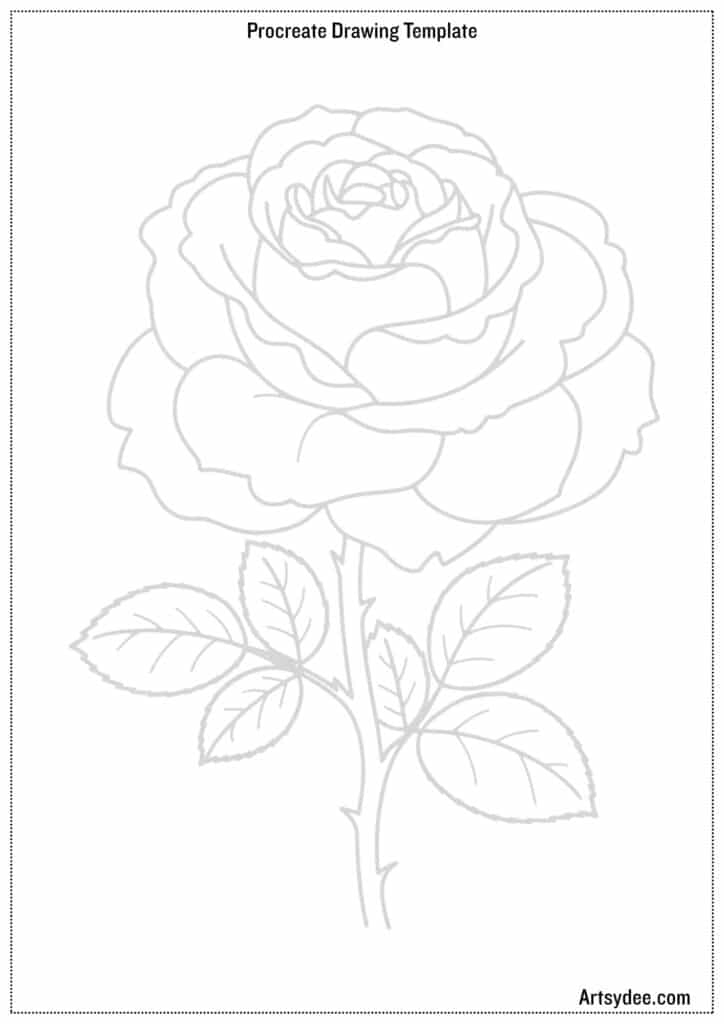
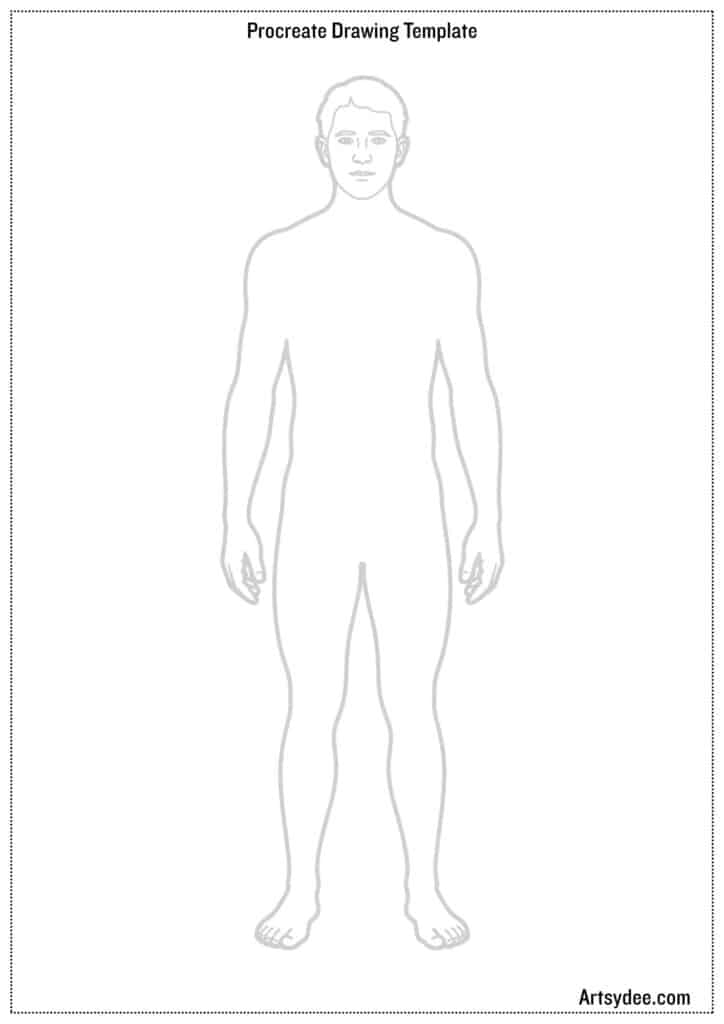
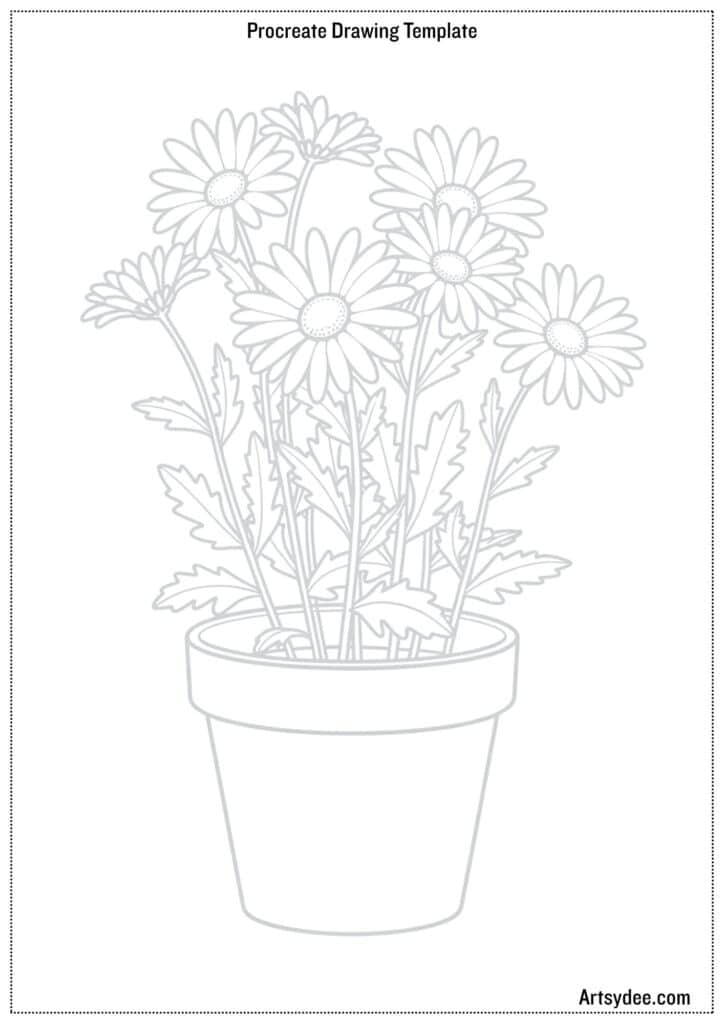
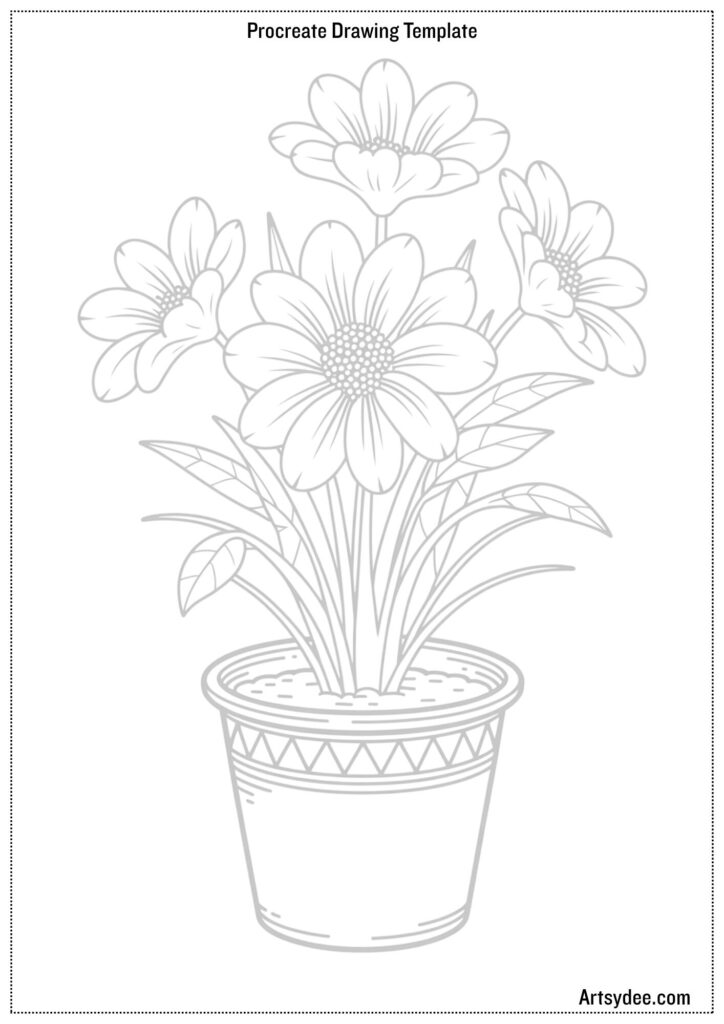
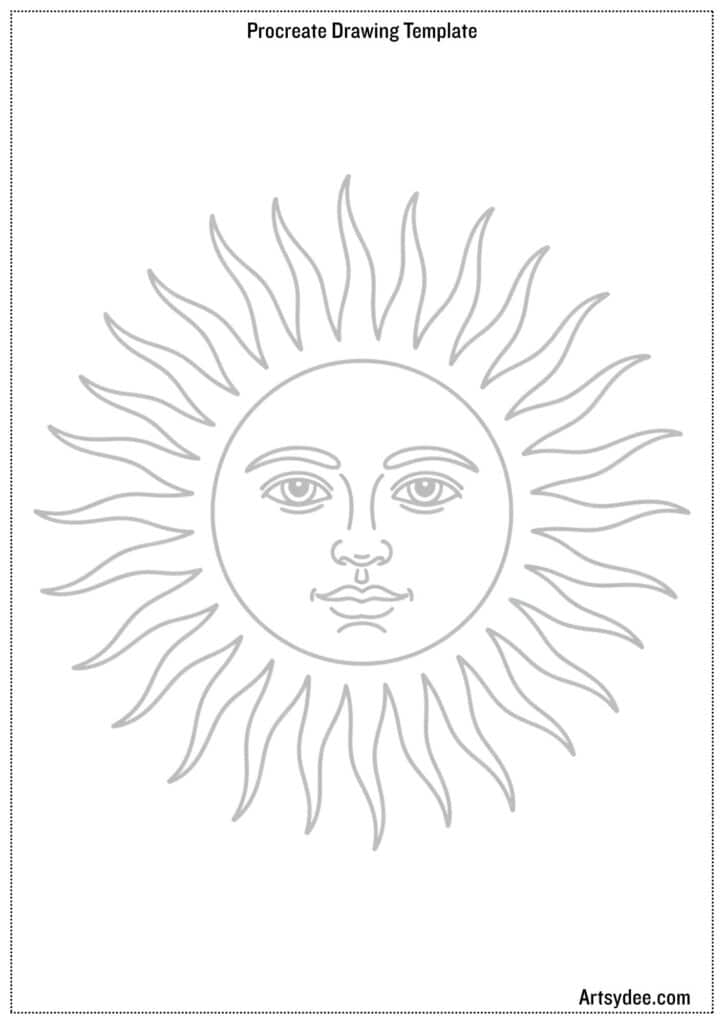
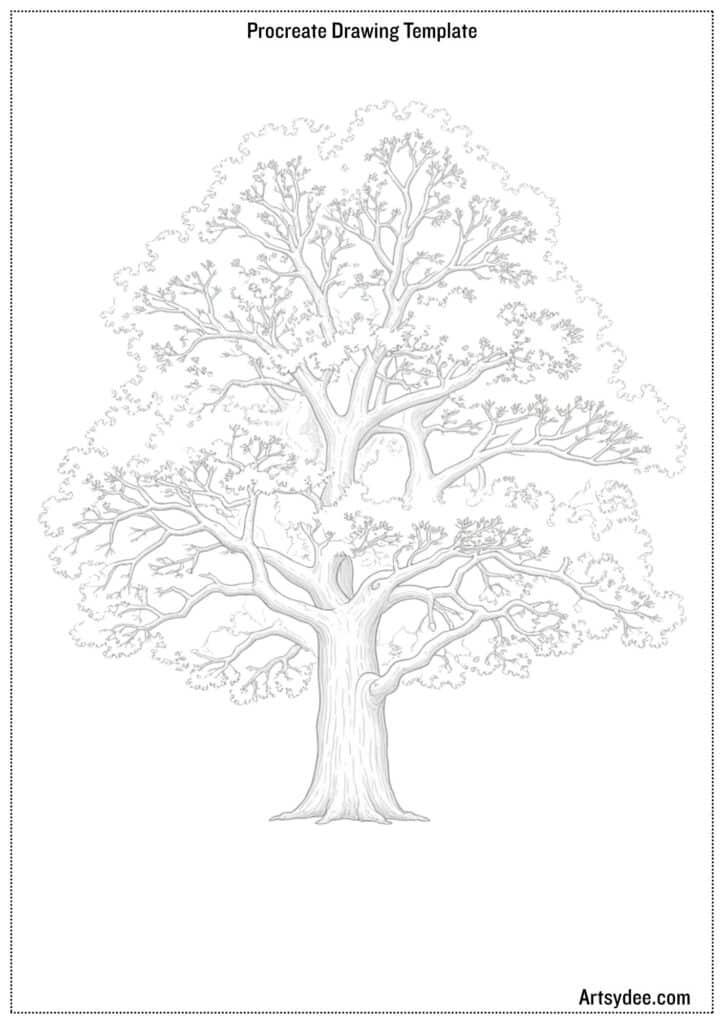
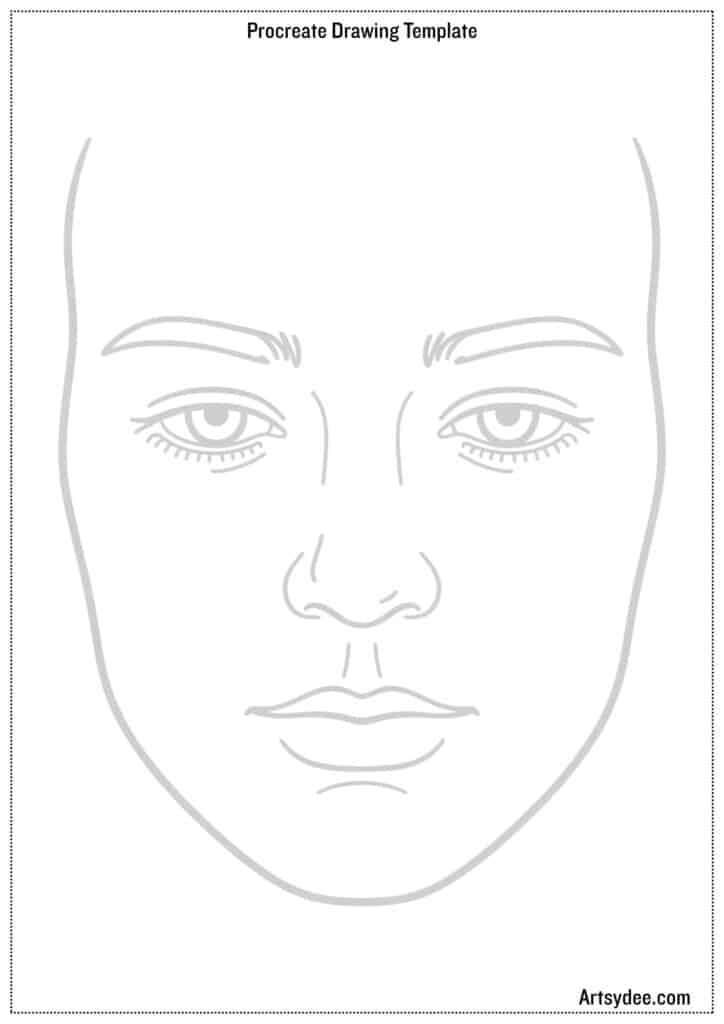
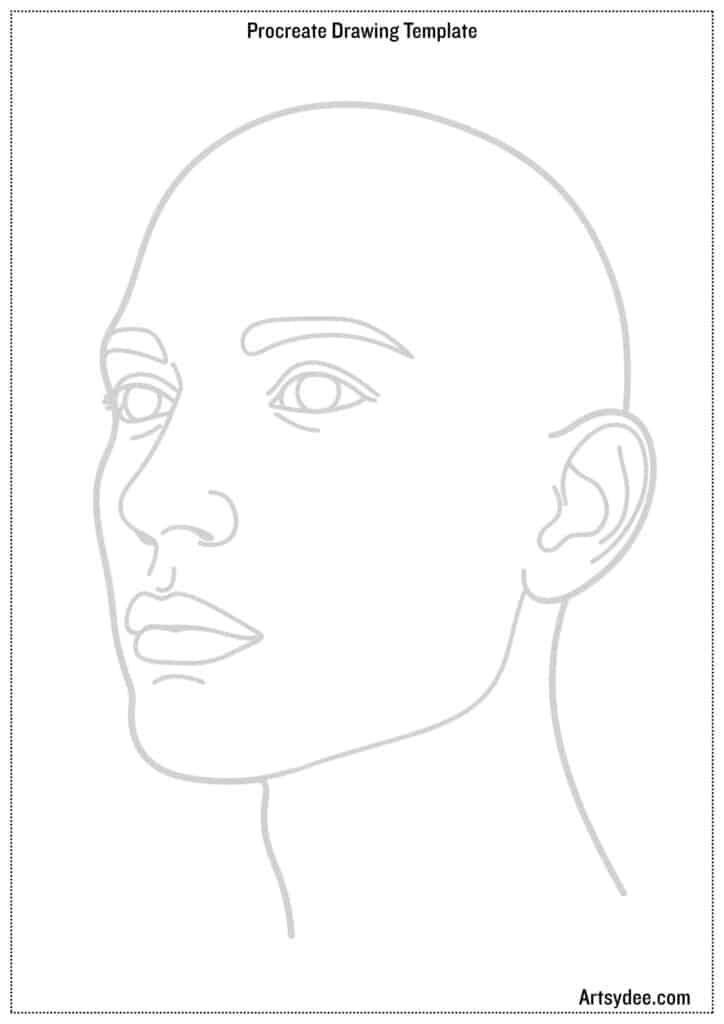
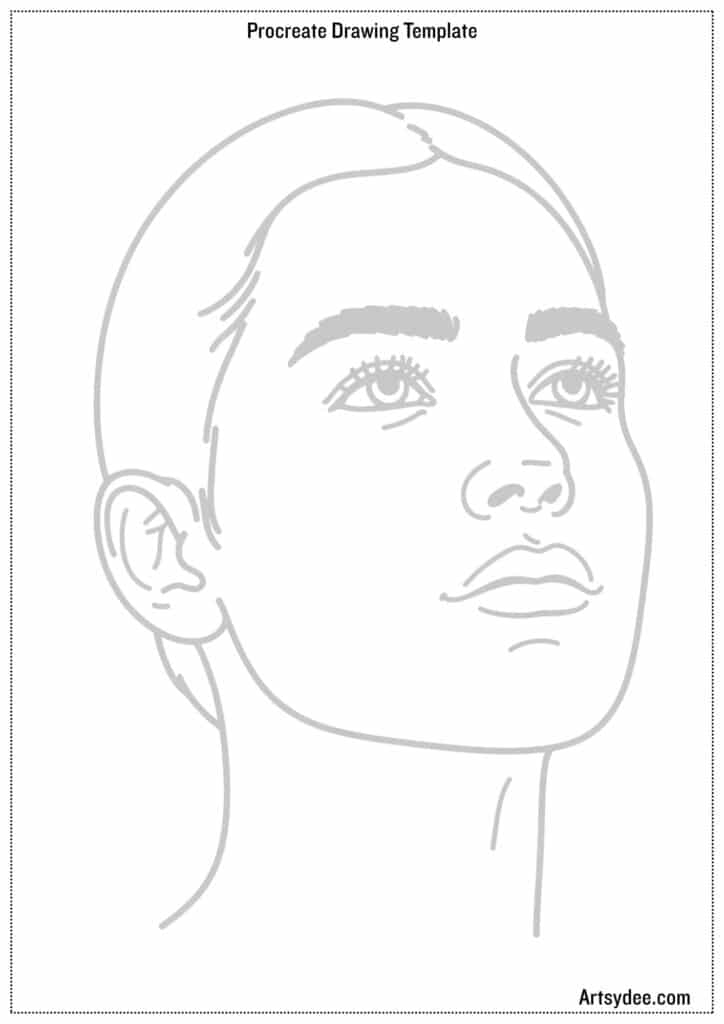
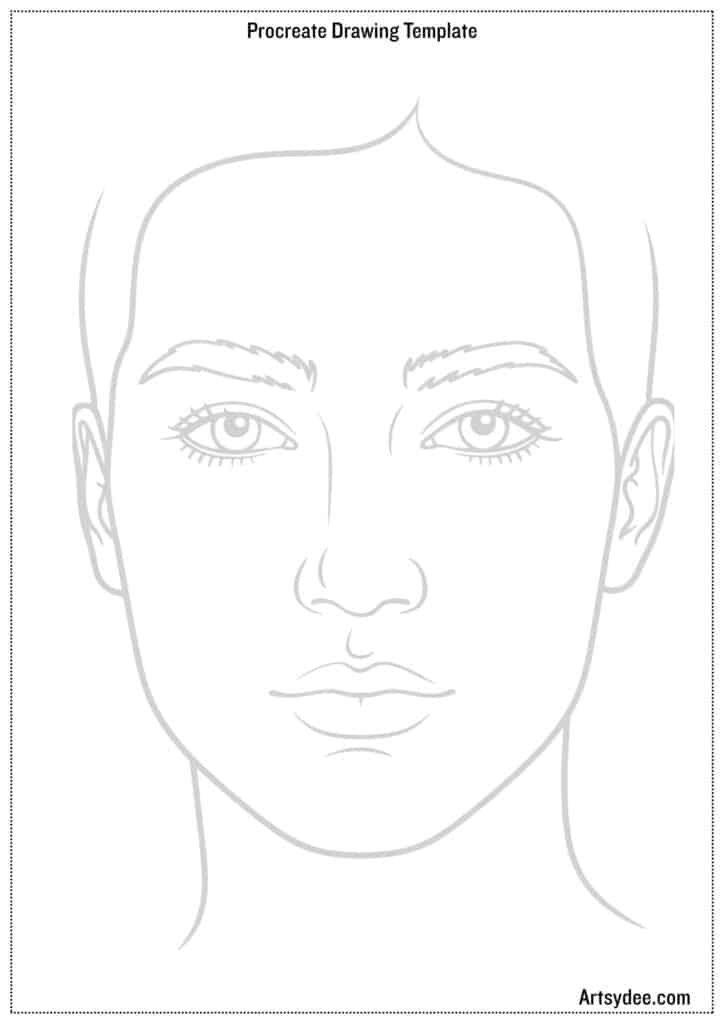
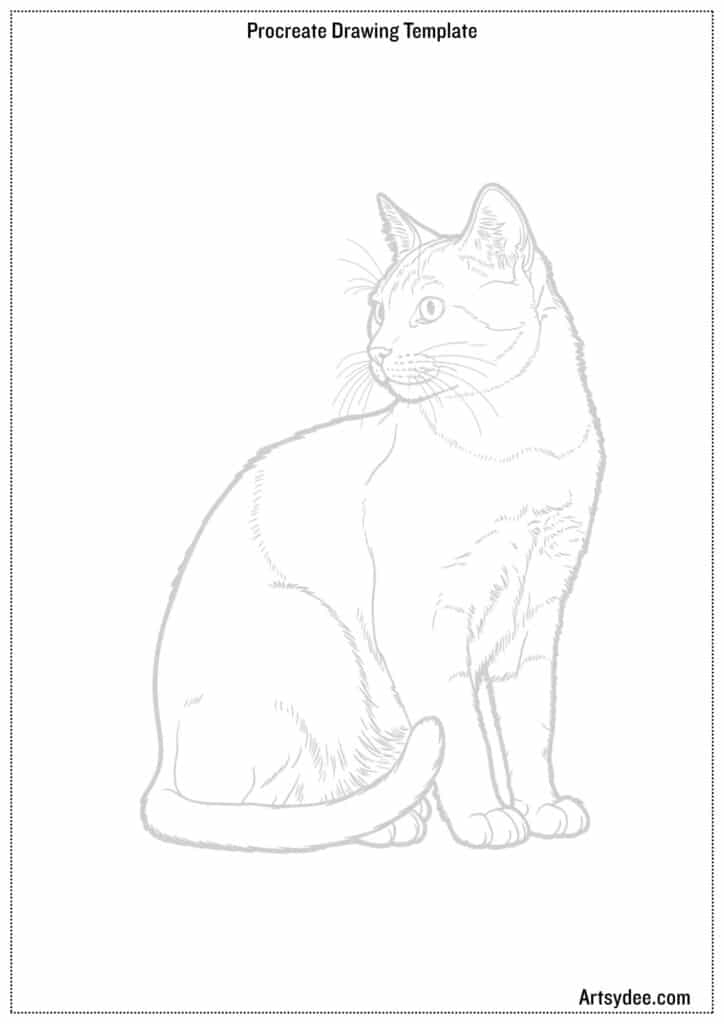
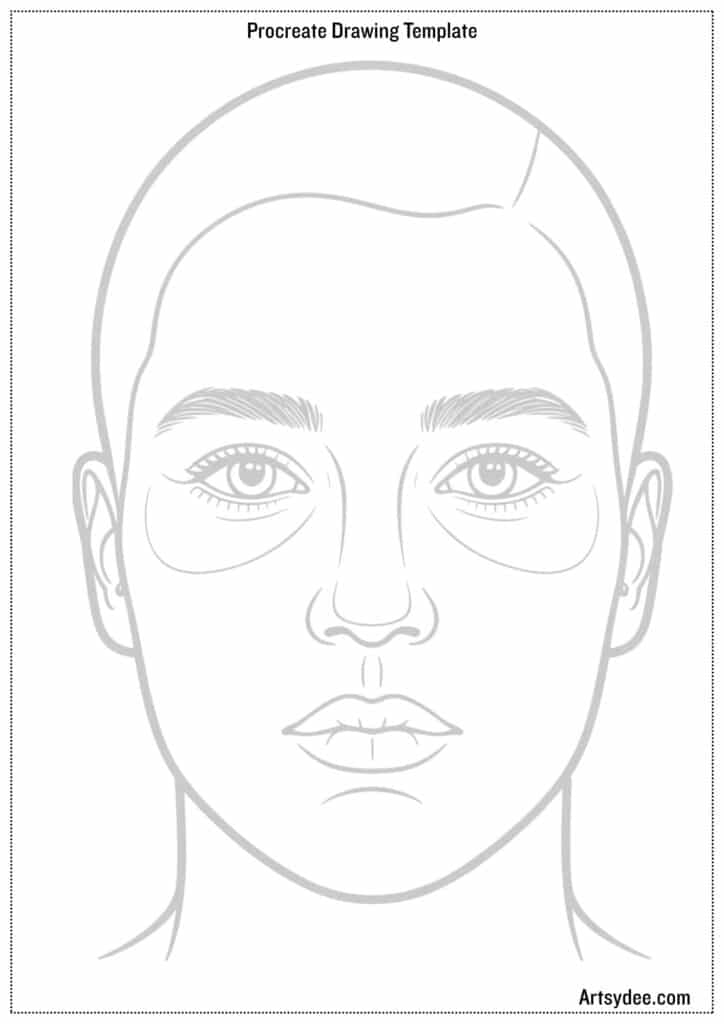
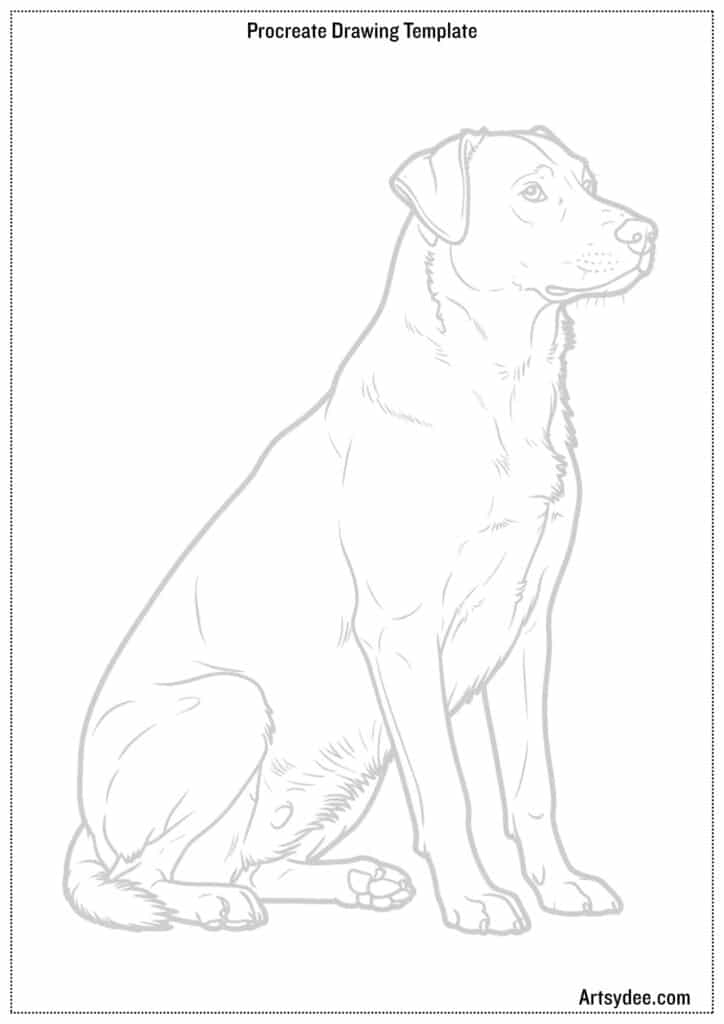
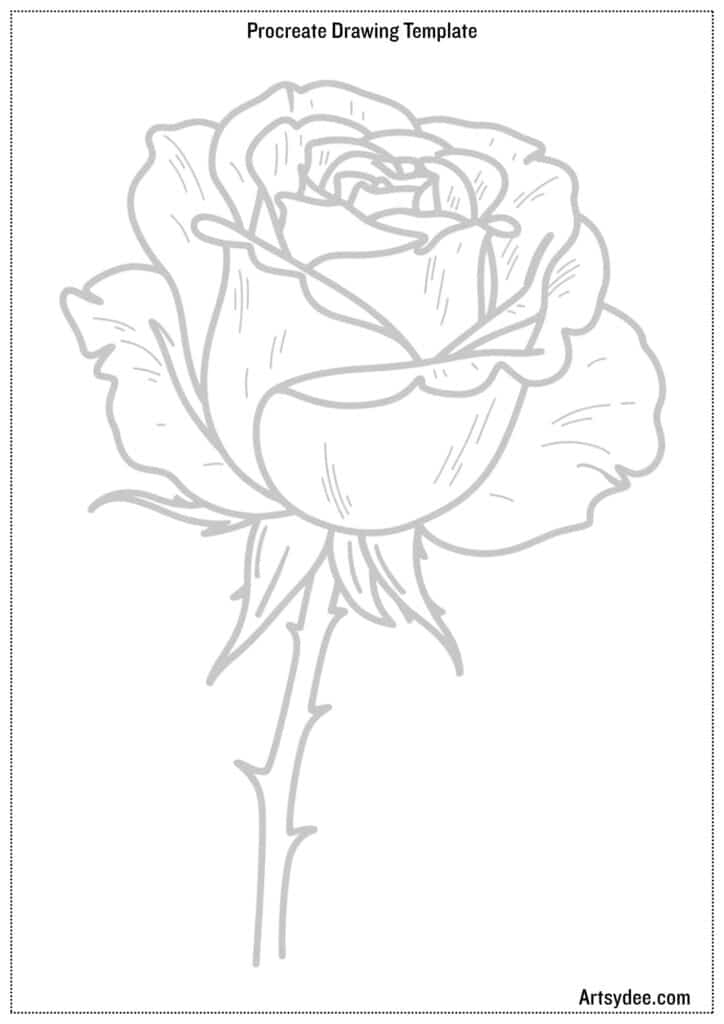
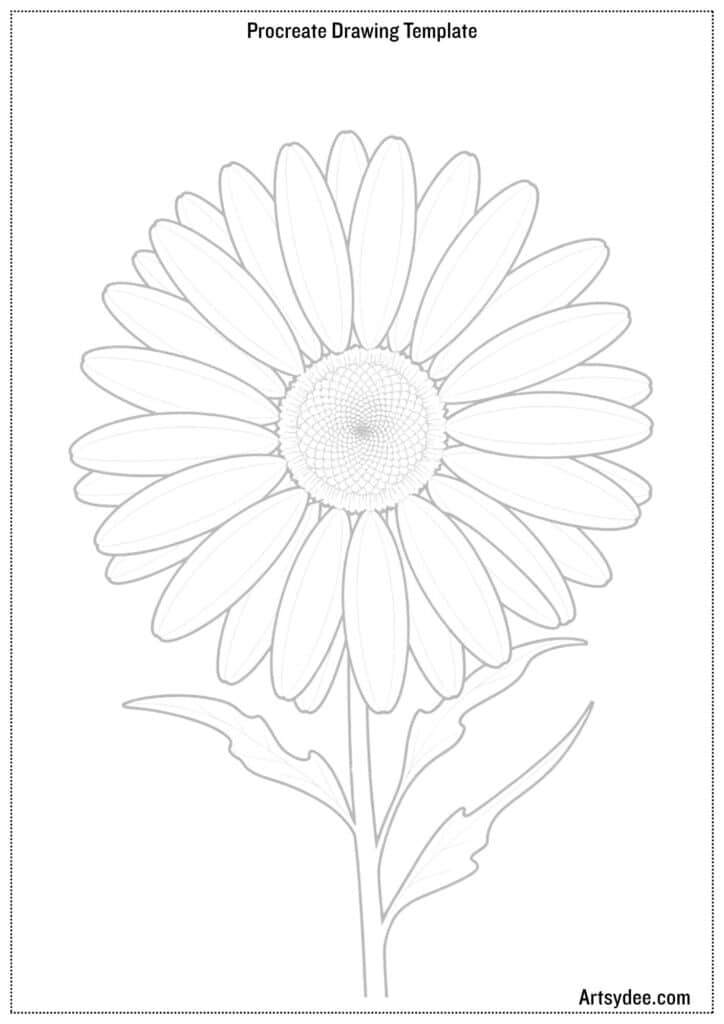
- If you prefer traditional art, simply print the PDF and use it for tracing, sketching, or coloring by hand.
- If you’re working digitally, download the JPEG version and import it into Procreate — then create a new layer on top to trace, color, or practice your drawing skills.
It’s the perfect way to test your new iPad, explore brushes, or warm up creatively before your next big project 🎨
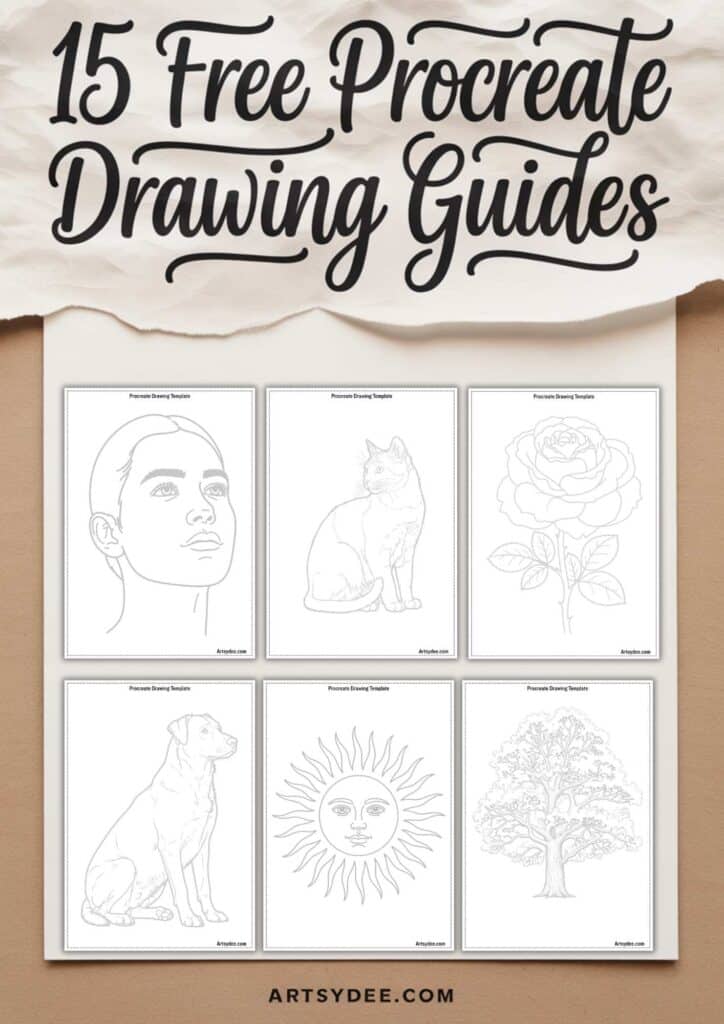
Download the Free Procreate Drawing Templates Here
👉 Pop your email into the box near the top of this post and I’ll send these straight to your inbox — free!
Want more digital art goodness?
I share brand new tutorials, templates, and creative resources every single week inside my Patreon community. Think: step-by-step watercolor lessons, Procreate brushes, junk journal kits, and printables you won’t find anywhere else.
It’s like having a creative friend who drops new art supplies in your mailbox every week. (Except digital. And way less expensive than my actual art supply habit.)
Join the Artsydee Patreon here and let’s create together! 🎨
🎬 Love video tutorials? Subscribe to my YouTube channel for weekly art tutorials and creative inspiration!
Got your iPad sorted? My shop has Procreate brushes and drawing resources ready to load straight onto it.
Shop Procreate goodies →Frequently Asked Questions
Which iPad is best for drawing?
If you want the very best experience and can stretch the budget, the 13-inch M4 iPad Pro is my top pick — it's what I use now, and the Tandem OLED screen with 120Hz ProMotion makes drawing feel buttery smooth with almost zero latency. That said, it's overkill for a lot of people, so the guide walks through cheaper options too.
Do I really need the most expensive iPad Pro?
Honestly, no. The Pro is glorious, but plenty of artists are happier not paying for it. The iPad Air (6th Gen) is the sweet spot for most people — powerful enough for serious work without the Pro price — and the standard iPad (10th Gen) is a great starting point if you're just beginning.
What's the best iPad for a beginner on a budget?
The iPad (10th Gen) is the one I'd point beginners to — it handles Procreate happily and won't have you spending Pro money before you know whether digital art is for you. If you want something ultra-portable for sketching on the go, the iPad Mini (6th Gen) is a lovely little option.
Do I need an Apple Pencil and other accessories?
The Apple Pencil is non-negotiable — it's the whole point of drawing on an iPad, so factor it into your budget. Beyond that, a Paperlike screen protector gives a lovely paper-like feel, and a drawing glove, a case with a stand and spare pencil tips are nice-to-haves rather than must-haves.
How do I download the free Procreate drawing templates?
Scroll to the free download section at the top of this post and follow the sign-up prompt there — it unlocks the full printable pack, plus every other free printable across artsydee.com.
Once you’ve warmed up with your free Procreate Drawing Templates, you’ll want a few more tools in your kit. Take a look around my shop for Procreate brushes and digital drawing resources made for your new iPad.
Visit the shop →
Should I get this iPad setup or a Wacom Cintiq?
https://pctechtest.com/ipad-pro-vs-wacom-cintiq
They were both about the same price. Which one has a better drawing experience?
Personally I love my iPad – but I primarly use it for Procreate and Art Set.