Last Updated on October 15, 2026 by Dee
You downloaded a gorgeous new brush set. You tapped it. And Procreate just — sat there. No new brushes, no confirmation, nothing. If you’ve ever stared at your brush library wondering where your download actually went, you’re not alone, and it’s almost never anything you’ve done wrong.
I made a quick video walking through exactly where brushes and stamps go once you import them, plus the two or three things that usually explain a “missing” set. Watch it below, or keep scrolling — everything’s written out here too.
Free Procreate Sticker-Making Starter Kit
Grab my free set of practice stamps below — perfect for trying the import method in this post before you touch your real brush sets.
Table of Contents
Why Your Procreate Brushes Might Not Be Loading
Quick answer: nine times out of ten, the file opened in the wrong app instead of handing off to Procreate, or the brush imported fine but landed somewhere in your brush library you haven’t spotted yet. Genuinely broken downloads are rare.
The usual culprits, in order of likelihood:
- The file opened somewhere other than Procreate. A
.brushsetor.brushfile needs to open directly in the Procreate app — if your iPad opened it in Files, Photos, or a preview window instead, nothing gets imported. - It imported, but not where you were looking. A whole brush set arrives as a new set with the file’s name, at the top of your brush library. A single brush goes into a set called Imported, at the bottom. If you’re only checking your usual sets, you’ll miss it completely.
- The download itself didn’t finish. Especially on patchy wifi, a zipped brush file can look complete in Files but actually be a partial download. Re-downloading fixes this instantly.
- You’re opening a
.zipinstead of the brush file inside it. Some brush sets arrive zipped — you need to unzip first (tap it in Files) and then open the actual.brushsetfile that appears inside.
How to Properly Import a Brush or Stamp Set
There are two reliable ways to get a brush or stamp file into Procreate. Either works — use whichever fits how you downloaded the file.
Method 1: Tap-to-import (easiest)
- Open the Files app and find your downloaded
.brushsetor.brushfile. - Tap it once.
- Your iPad should ask which app to open it with, or launch Procreate automatically. Choose Procreate if you’re given the option.
- Procreate will open straight to your brush library with the new set already sitting there, ready to use.
Method 2: Import from inside Procreate
- Open Procreate and tap the brush icon to open your brush library.
- Tap the + in the top-right corner.
- Choose Import, then browse to the file in your Files app.
- Select it, and Procreate imports the set immediately.
If you downloaded a stamp set, it works exactly the same way — stamps are really just brushes with a single, fixed shape, so Procreate treats the file identically.
Where to Find Your Brushes Once They’re Imported
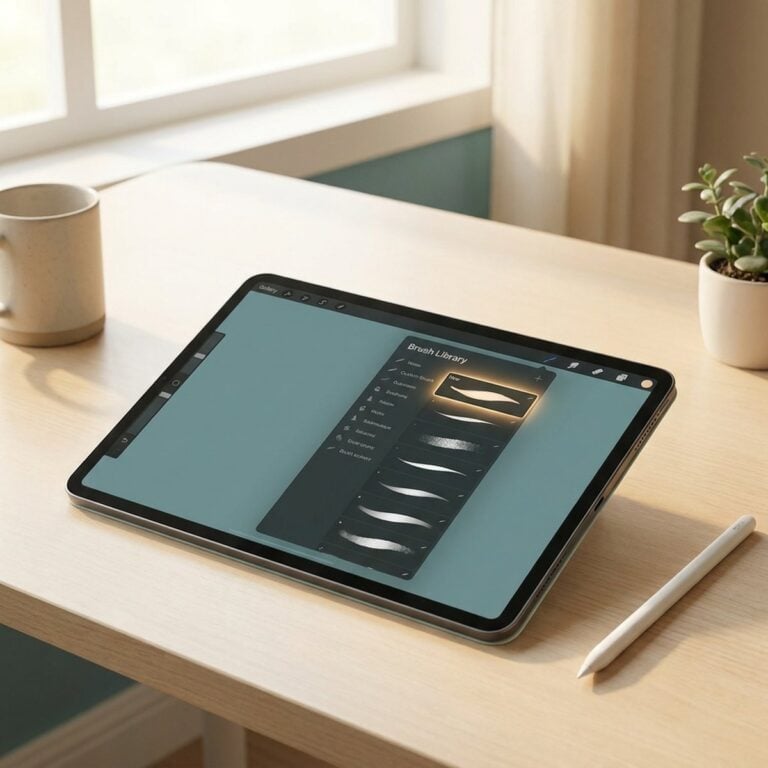
Open your brush library (tap the brush icon, top right of the screen). A brush set you’ve imported appears as its own named set at the top of the list. A single brush goes into a set called Imported, which sits at the bottom. Still can’t see it? Scroll through the whole list, top to bottom.
The group is usually named after the original file, so if you downloaded something called “Botanical Stamps,” look for a set literally called that at the very end of your list.
Quick Check: Did It Actually Install?
Before you assume something’s broken, run through this in under a minute:
- Checked the top of your brush library, and the Imported set at the bottom? (Most “missing” brushes are just sitting there.)
- Opened the file directly in Procreate, not Files or Photos?
- If it came as a
.zip, did you unzip it first and open the file inside? - Tried re-downloading, in case the file was incomplete?
If you’ve checked all four and it’s still nowhere to be found, the file itself may be corrupted — go back to wherever you downloaded it and grab a fresh copy.
How to Use a Stamp Once It’s Installed
Once your stamp set shows up in your brush library, using it is just like painting with any other brush — tap once to place it, or drag for a smoother stroke of repeated stamps.
A few things that make stamps look properly polished rather than just “pasted on”:
- Put it on its own layer. This lets you move, resize, or delete it without touching anything else in your piece.
- Use the size slider generously. Vary the size between stamps of the same shape — identical, evenly-spaced stamps read as digital; varied sizes read as hand-placed.
- Change the colour with the colour wheel, not by hunting for a different stamp — most stamp sets are designed to take colour beautifully.
📺 Enjoyed this one? Subscribe to my YouTube channel — I share Procreate tutorials and free resources every week.
Frequently Asked Questions
Why won’t my Procreate brush download?
Most “downloads” that seem to vanish are actually imports that succeeded but landed where you weren’t looking: a brush set goes to the top of your brush library, and a single brush goes into the Imported set at the bottom. Check both before assuming anything’s missing.
Do I need wifi to import a brush into Procreate?
No — once the file is saved to your Files app, importing happens entirely on your iPad. You only need wifi for the original download.
Can I import a brush set into Procreate on iPhone?
Yes, the same tap-to-import method works on the iPhone version of Procreate, though the smaller screen makes browsing your brush library a little more fiddly.
Why does my imported brush look different from the preview image?
Brush previews are usually painted at full pressure and size. Try adjusting the size slider and pressing a little firmer — most brushes need some experimenting to match how they were shown.
Want More Procreate Brushes & Stamps?
If you’re building out your Procreate toolkit, my Patreon is where I share new brush sets, stamp collections and colour palettes every week — plus the full back catalogue the moment you join.
Final Thoughts
Ninety percent of “my brushes aren’t showing up” turns out to be a scrolling problem, not a technical one — so before you re-download anything, check the top of your brush library (and the Imported set at the bottom, for single brushes). Chances are it’s been sitting there the whole time.
Come find me on Instagram or Pinterest and show me what you make with your new brushes — I’d love to see it.