
Last Updated on October 9, 2026 by Dee
Here is how to turn off pressure sensitivity in Procreate, plus a free Procreate Sketch Starter Kit with brushes and a palette to try.
Wondering how to turn off pressure sensitivity in Procreate? If you’re new to Procreate, you might have noticed that the pressure sensitivity feature can be a bit overwhelming at first.
While it’s a great tool for creating dynamic and expressive artwork, it can also be frustrating if you’re trying to achieve a specific effect or style.
Luckily, turning off pressure sensitivity in Procreate is a simple process that can help you create the artwork you want.
First you’ll need to access the Preferences menu. From there, you can adjust the pressure curve to turn off sensitivity for all brushes or for individual brushes.
You can also adjust other settings like brush size and opacity to further customize your artwork.
By turning off pressure sensitivity, you can create more consistent strokes and lines in your artwork.
This can be especially helpful if you’re working on a project that requires precise lines or shapes.
While pressure sensitivity is a valuable tool in Procreate, it’s important to know how to turn it off when you need to.
Read on for more in-depth instructions on Pressure Sensitivity Settings.
Accessing the Preferences Menu
To turn off pressure sensitivity in Procreate, you need to access the Preferences menu.
The Preferences menu contains a variety of settings that you can adjust to customize the way Procreate works.
Read this article if you’re wondering How to use Procreate and if you learn better through watching video tutorials check out our Artsydee Channel.
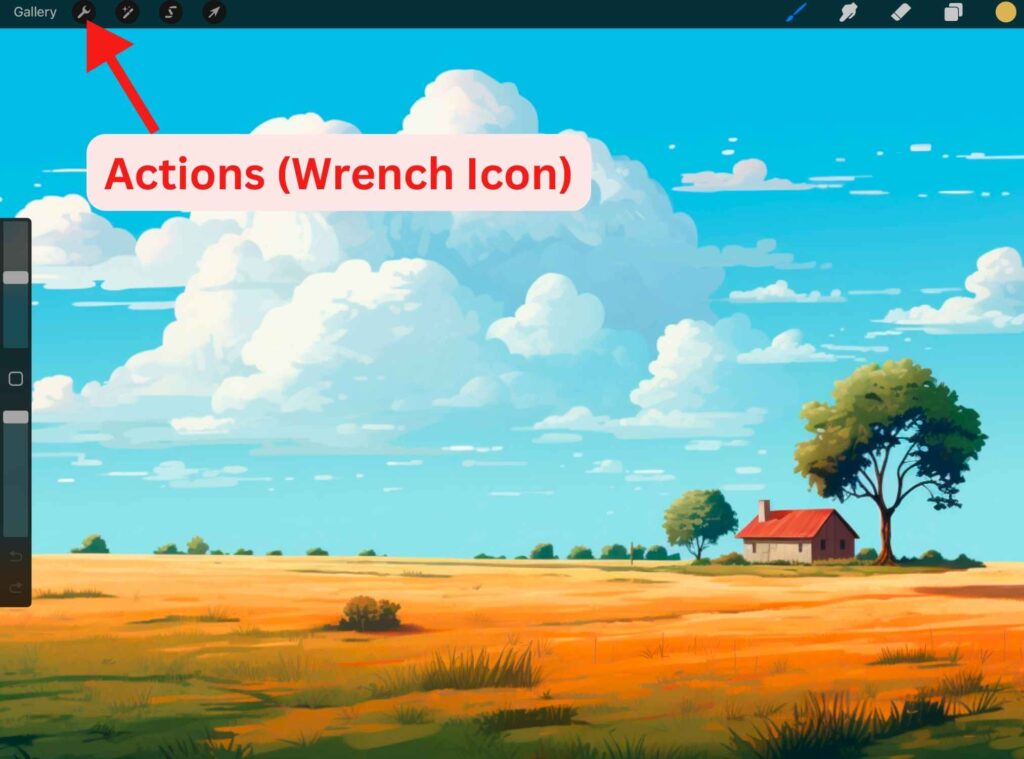
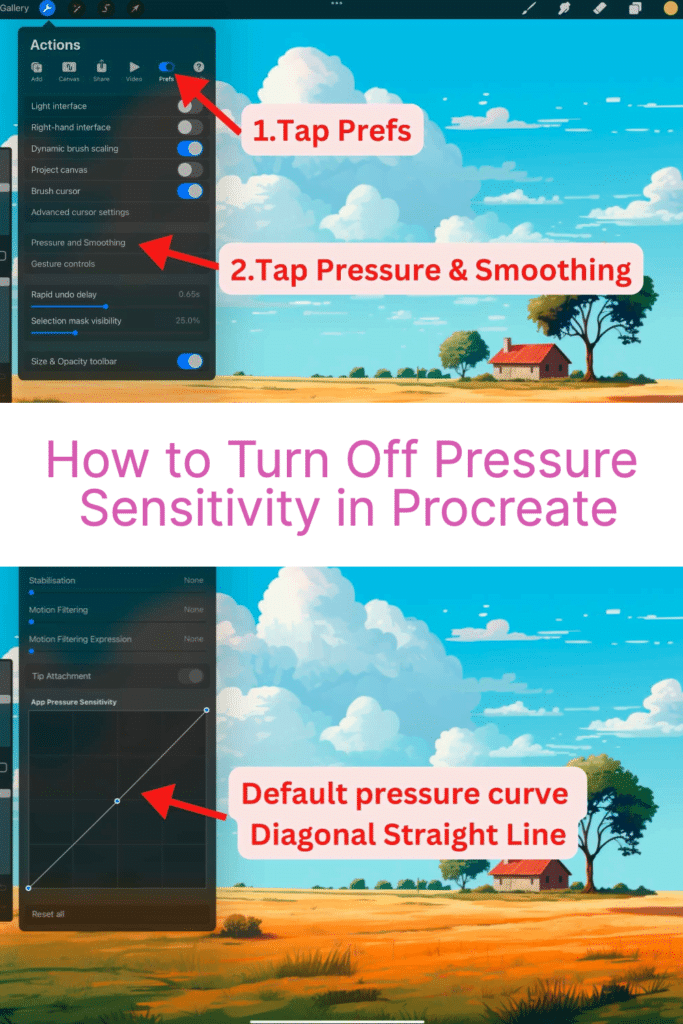
To access the Preferences menu, first, tap on the wrench icon in the top left corner of the interface. This will open the Actions menu. From here, you can access a variety of different settings and tools.
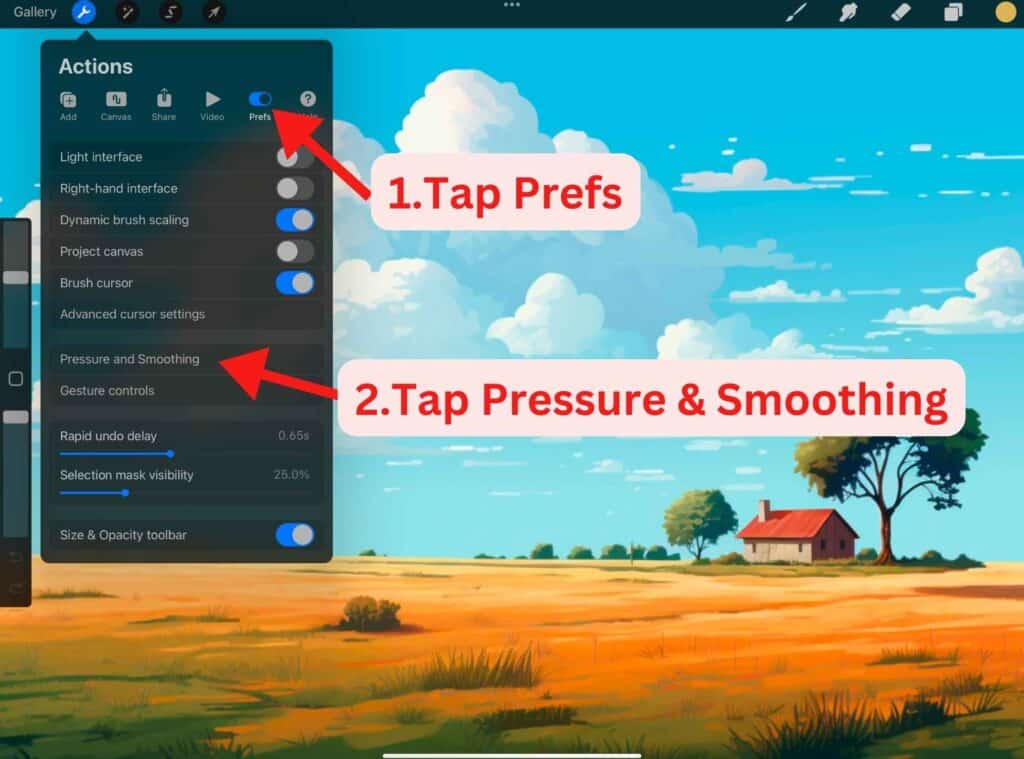
Next, select the Prefs tab. This will take you to the Preferences menu, where you can adjust a variety of different settings related to Procreate.
Adjusting Pressure Curve
The pressure curve in Procreate controls how the pressure applied to the Apple Pencil affects the brush stroke.
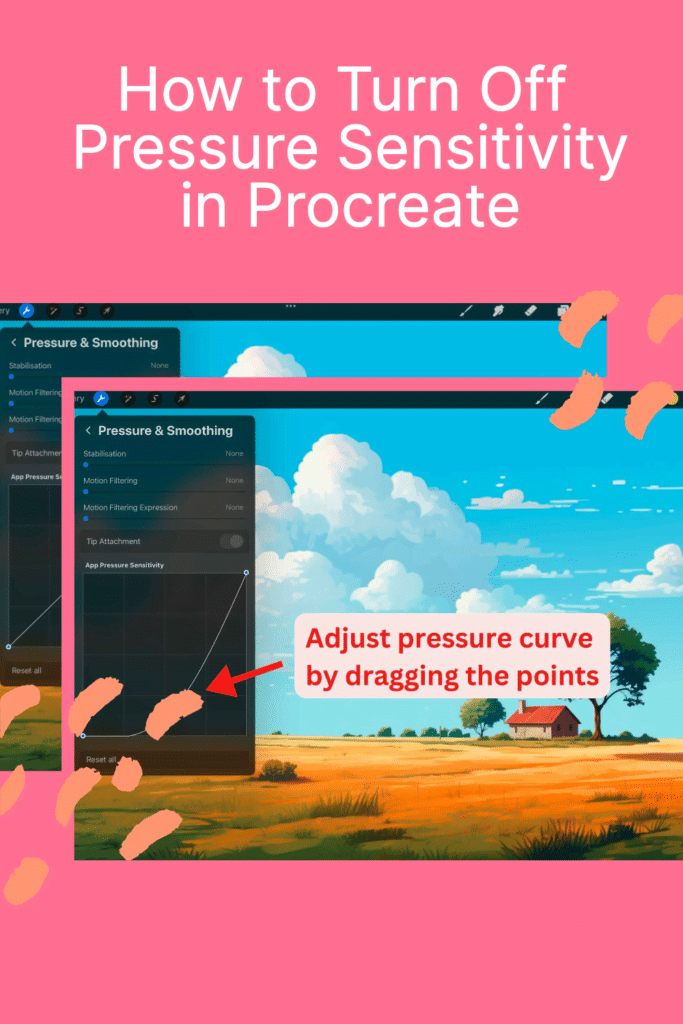
You can adjust the pressure curve to make the brush more or less sensitive to pressure.
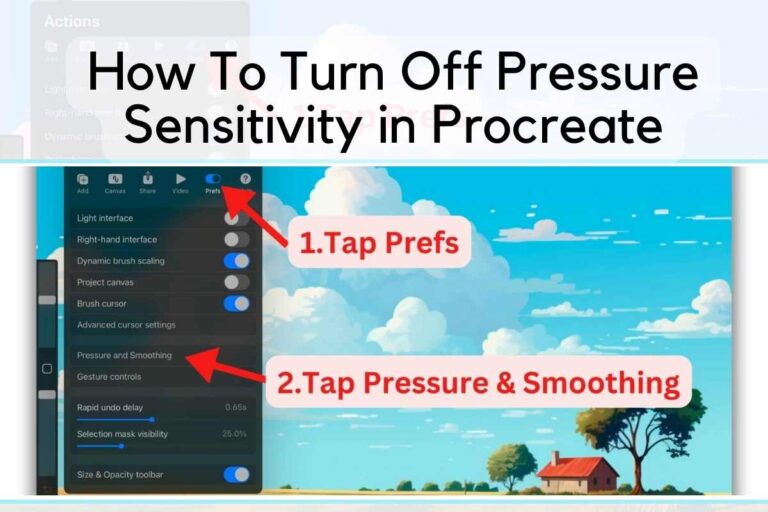
To adjust or edit pressure curve, tap on the Actions button (small wrench icon) on the top left of your screen, then select Pressure and Smoothing in the Prefs tab.
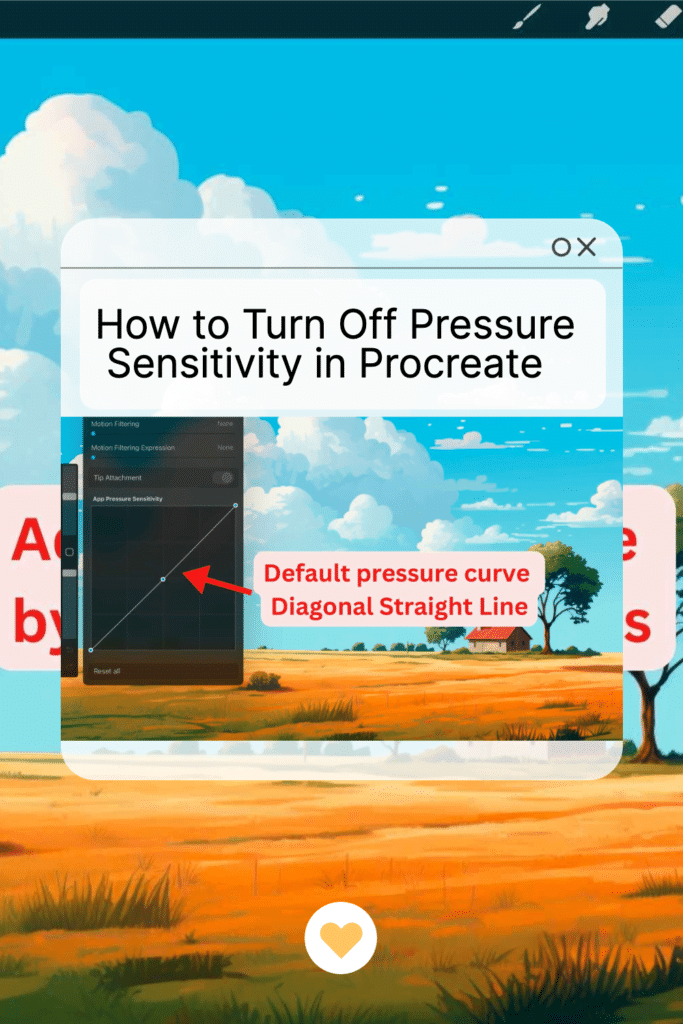
The bottom portion of the graph or the x-axis refers to the pressure or force detected. The left side of the graph or y-axis refers to the size of the brush stroke.
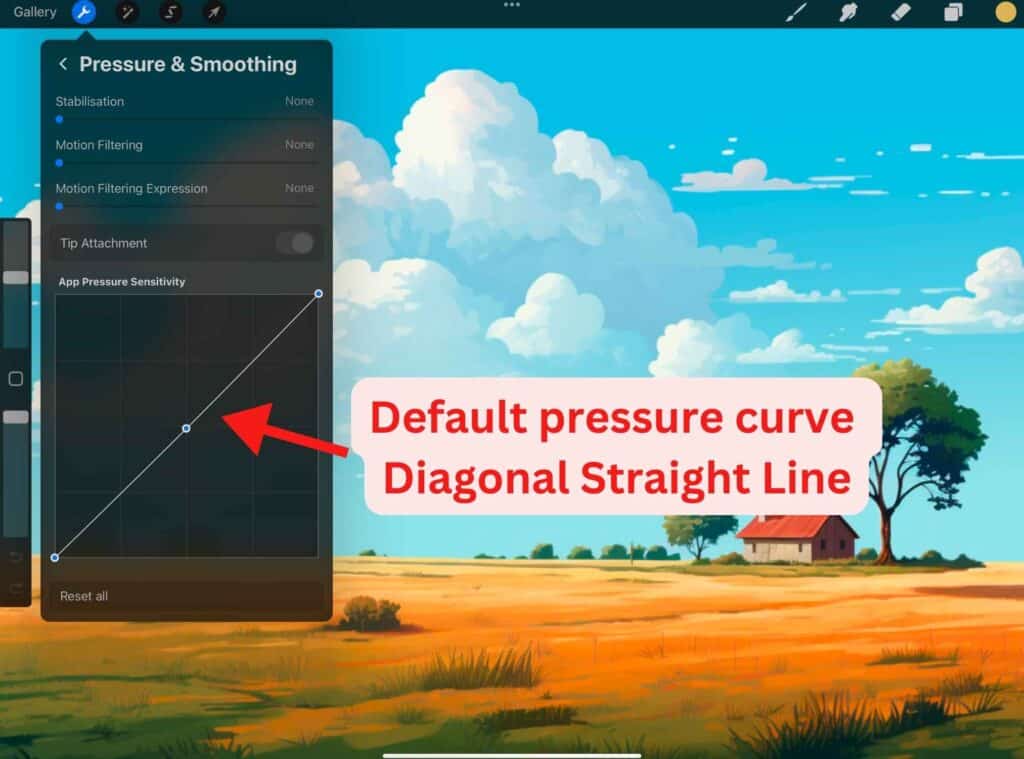
The default pressure curve in Procreate is a straight diagonal line, which means that the brush stroke will gradually increase in size as you apply more pressure to the Apple Pencil.
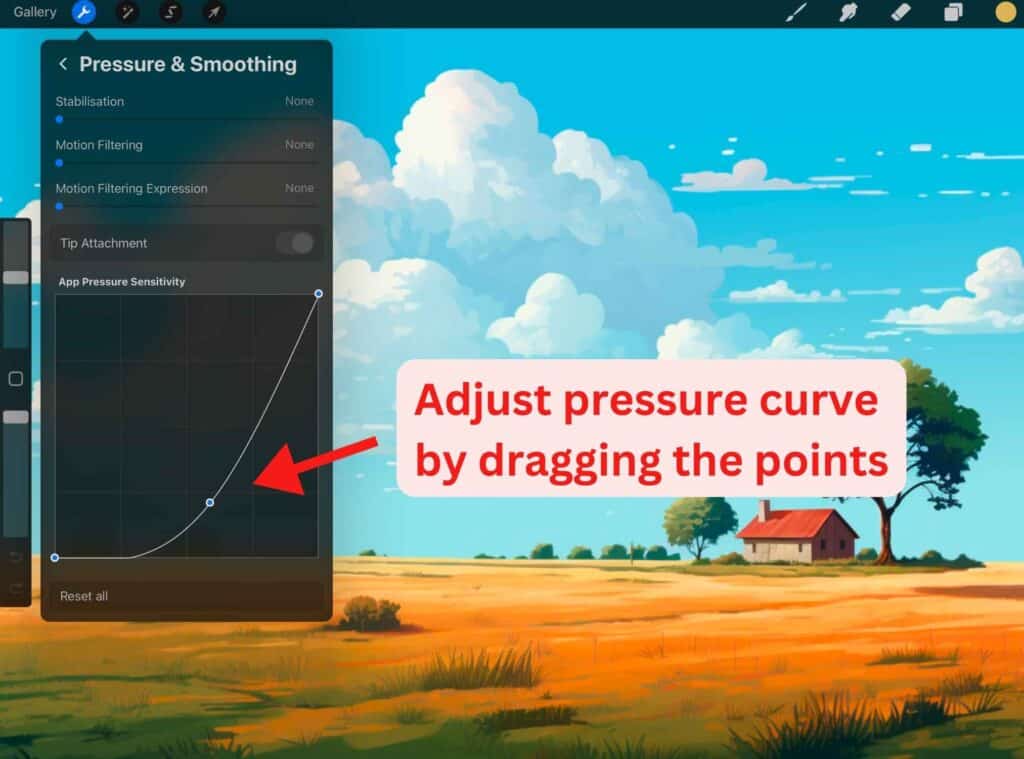
You can adjust the curve by dragging the points on the graph up or down.
If you want to reset the pressure curve to its default settings, come back to the Pressure Curve and tap on Reset. This will reset the curve to a default S-shape curve.
Adjusting the pressure curve can help you achieve the desired effect for your artwork.
For example, if you want to create a sketchy look, you can adjust the curve to make the brush more sensitive to pressure.
On the other hand, if you want to create a more precise line, you can adjust the curve to make the brush less sensitive to pressure.
Manipulating Brush Settings
If you want to turn off pressure sensitivity in Procreate, you need to manipulate your brush settings.
You have the option to turn off pressure sensitivity across Procreate or for an individual brush.
Turning Off Pressure Sensitivity Across Procreate
To turn off pressure sensitivity across Procreate, you need to access your Procreate Preferences. First, open the “Actions” menu by tapping on the wrench icon.
Then, tap on “Preferences” and select “Apple Pencil.” Here, you will find a pressure curve. To turn off pressure sensitivity, drag the dot in your pressure curve to the top right.
Turning Off Pressure Sensitivity for an Individual Brush
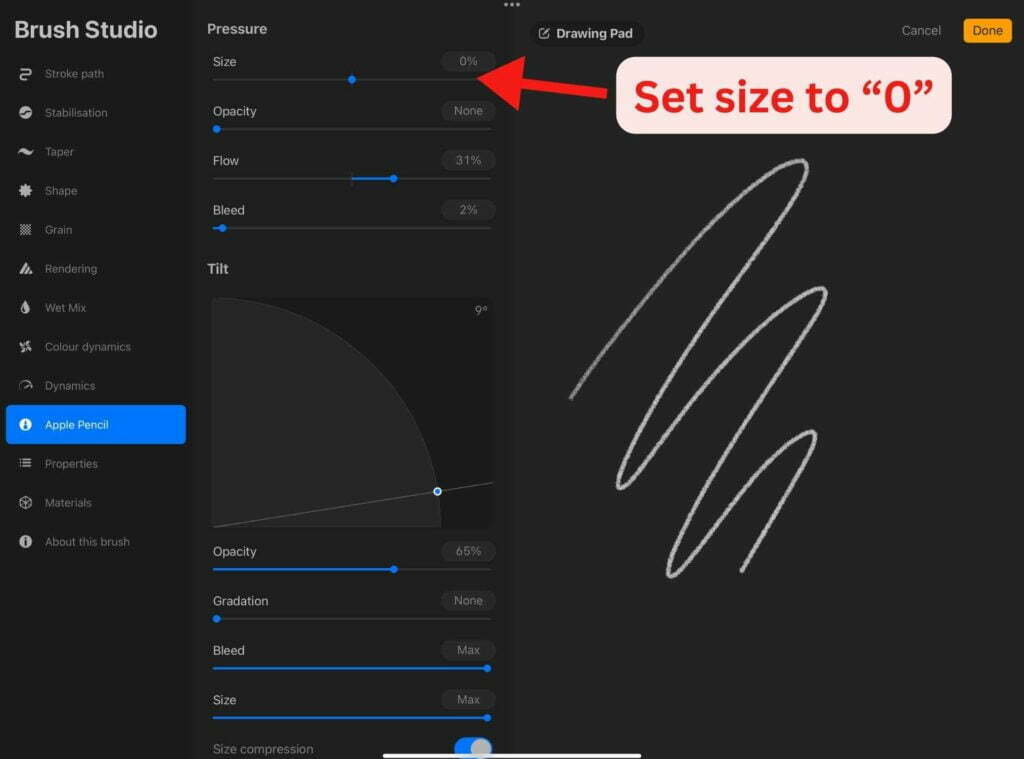
If you want to turn off pressure sensitivity for an individual brush, you need to make a copy of the brush and set the size to zero in the Apple Pencil settings of the brush settings.
To do this, first select the brush you want to modify. Then, tap on the brush settings icon and select “Duplicate.”
Next, tap on “Apple Pencil” and set the size to zero. This will turn off pressure sensitivity for that specific brush.
Turning Off Pressure Sensitivity
If you’re looking to turn off pressure sensitivity in Procreate, you have a couple of options. You can either turn off pressure sensitivity across Procreate or turn off pressure sensitivity for an individual brush.
To turn off pressure sensitivity across Procreate, follow these steps:
- Open Procreate and tap on the wrench icon to access the Preferences.
- Scroll down to the Pressure Curve section.
- Drag the dot in your pressure curve to the top right to turn off pressure sensitivity.
To turn off pressure sensitivity for an individual brush, follow these steps:
- Select the brush you want to modify.
- Tap on the brush settings.
- Set the size to zero in the Apple Pencil settings.
It’s important to note that turning off pressure sensitivity for an individual brush will only affect that specific brush.
If you want to turn off pressure sensitivity for all brushes, you’ll need to follow the steps to turn off pressure sensitivity across Procreate.
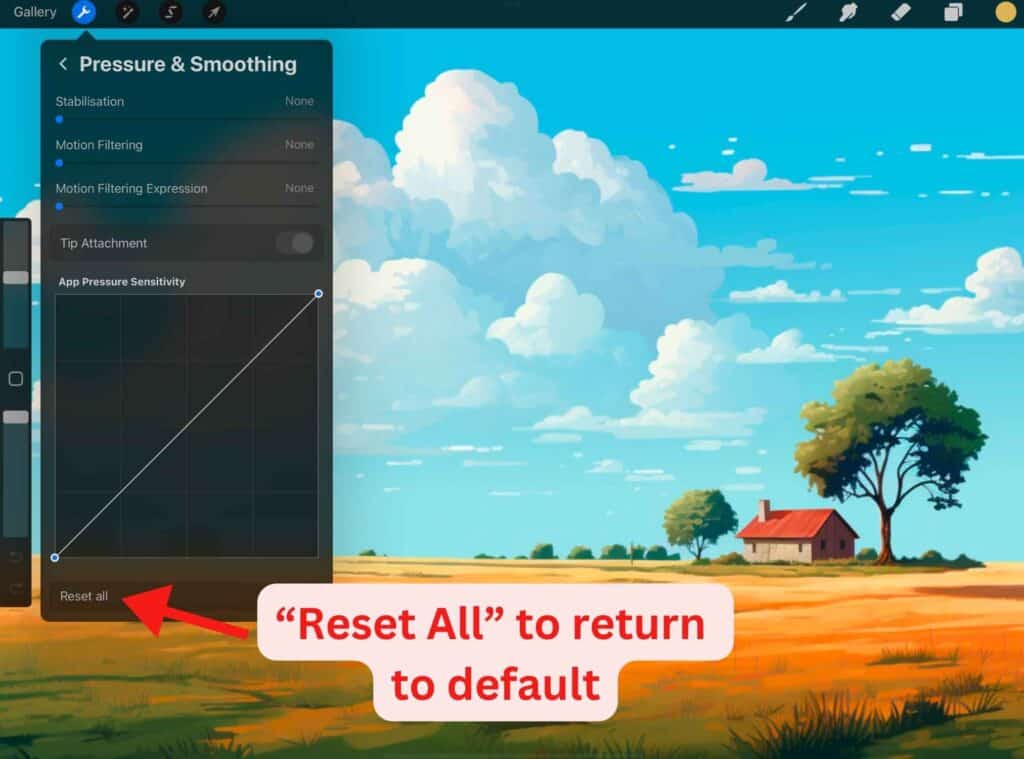
If you ever want to reset all your global settings in Pressure & Smoothing, scroll down and tap Reset all. This will restore all the settings to their default values.
Utilizing Procreate Pocket and Other Versions
If you are using Procreate Pocket, you may be wondering if it has pressure sensitivity. Unfortunately, in most cases, Procreate Pocket does not have pressure sensitivity.
Your iPhone would need to have 3D touch for pressure sensitivity to work. However, 3D touch has been eliminated by Apple and replaced by haptic touch which does not support pressure sensitivity.
Third-party Bluetooth styluses can have wonky results with Procreate Pocket, so it may be best to stick with the Apple Pencil for the best experience.
How do I turn off the pressure sensitivity on my Apple Pencil?
You can’t turn off pressure sensitivity on your Apple Pencil. However, you can adjust the pressure curve in Procreate to make it less sensitive.
Other articles you may enjoy…
Artist Drawing Gloves for Procreate
How To Create a Gradient in Procreate
Turning Off Pressure Sensitivity in Procreate: FAQ
How do I turn off pressure sensitivity in Procreate?
Tap the wrench (Actions) icon in the top left, go to the Prefs tab, and open Pressure & Smoothing or Apple Pencil, where you’ll find the pressure curve. To switch sensitivity off, drag the dot in the curve up to the top right corner. That flattens the response so pressure no longer changes your stroke.
Why would I want to turn it off?
Pressure sensitivity is great for expressive, tapering strokes, but it can get in the way when you need consistency. Turning it off gives you even, uniform lines — really helpful for precise shapes, lettering, inking, or any project where you don’t want your line thickness wobbling as you press.
Can I turn it off for just one brush?
Yes. Make a duplicate copy of the brush first so you don’t lose the original, then open its settings and set the Apple Pencil pressure size to zero. That brush will now draw a steady line while all your other brushes keep their normal pressure response.
How do I turn it back on or reset it?
Head back to the pressure curve in the Prefs and tap Reset. That returns it to Procreate’s default S-shaped curve, and your pressure sensitivity behaves normally again. Nothing you do here is permanent, so feel free to experiment.
What actually is the pressure curve?
It’s a little graph that controls how the force from your Apple Pencil affects your stroke. The bottom (x-axis) is the pressure you apply, and the left side (y-axis) is the size of the brush stroke. By default it’s a diagonal line, so the stroke grows steadily as you press harder — dragging the points reshapes that relationship.
Do I need an Apple Pencil for any of this?
The pressure response is driven by the Apple Pencil, so these settings matter most when you’re drawing with one. Procreate itself is a one-off iPad purchase (around £12–13 / ~$15), and pairing it with an Apple Pencil is what gives you the pressure control you’re adjusting here.
Will this change affect all my brushes?
It depends where you make the change. Adjusting the main pressure curve in Preferences affects your brushes across Procreate, while duplicating a single brush and zeroing its pressure size only touches that one brush. So you can go global for consistency everywhere, or keep it targeted to one tool — your choice.